
Equalizer APO
Equalizer APO is a free audio equalizer for Windows that puts you in charge of your computer’s sound. If your music sounds flat or the bass is lacking, this simple tool can make a big difference. You can adjust everything from treble to deep bass, all without slowing down your computer.
Many users appreciate Equalizer APO because it’s easy to use and delivers great sound. It runs quietly in the background, giving you clear, balanced audio for music, movies, and games. After installing it, you’ll likely notice the improvement right away.
Download Equalizer APOWhat Is Equalizer APO?
Equalizer APO is an open-source audio equalizer made for Windows. It was developed by Jonas Thedering and has grown into one of the most trusted tools for sound control.
Most equalizers have lots of graphics, but Equalizer APO just runs quietly in the background. It’s built to be fast and efficient, so your computer stays quick whether you’re gaming, listening to music, or streaming.
It works with many audio channels, VST plugins, and custom filters. This means anyone can fine-tune their sound, whether you’re a musician or just enjoy listening.
Why People Love Equalizer APO
Equalizer APO has a loyal following because it delivers strong performance and reliability.
Here are some reasons users love it:
- Unlimited Filters: You can add as many filters as you want to shape your sound just the way you like.
- Low CPU Usage: The program is very light, so your computer keeps running smoothly.
- Multi-Channel Support: It works well with surround systems, headphones, and external sound cards.
- Instant Changes: You can adjust the sound in real time without needing to restart your PC.
- VST Plugin Support: You can use audio plugins to add more features.
- Open Source: The program is completely free and supported by an active community.
If you want more bass, clearer vocals, or a balanced sound, Equalizer APO gives you control without making things complicated.
How to Install Equalizer APO
Installing Equalizer APO is easy. You just need to download the latest version from its our website.
Here’s how to do it:
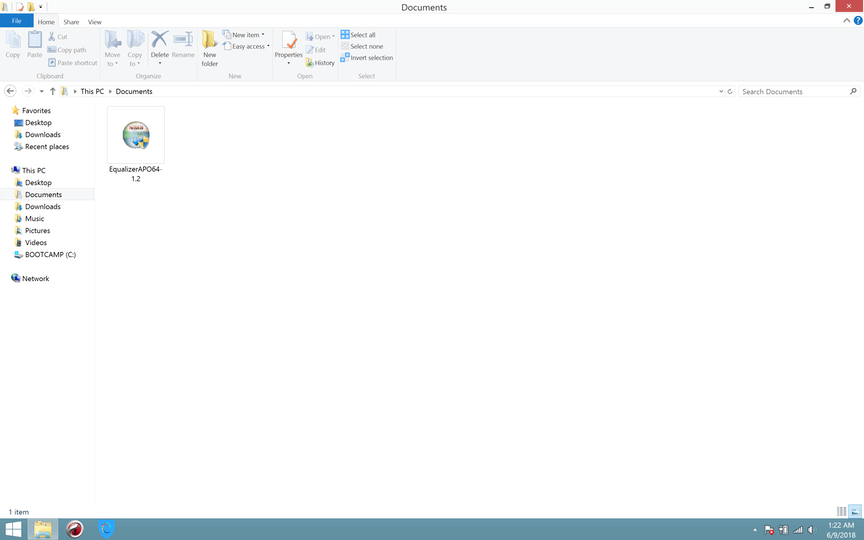
- Download the installer.
Save the file and open it to start installation. - Choose your devices.
When asked, choose the playback or recording devices you want Equalizer APO to use. It’s best to pick only the devices you use most often. - Complete setup and restart.
After the installation is done, restart your computer. This will turn on the equalizer. - Open the Configuration Editor.
Once your computer restarts, look for Equalizer APO in your Start Menu. The Configuration Editor is where you add and manage filters.

That’s all it takes. You’ll be ready to start adjusting your sound in minutes.
How to Use Equalizer APO
After installing Equalizer APO and restarting your computer, you can open it from the Start Menu or find it in your Program Files under the Equalizer APO folder. You can also access it quickly from the taskbar if a shortcut appears there.
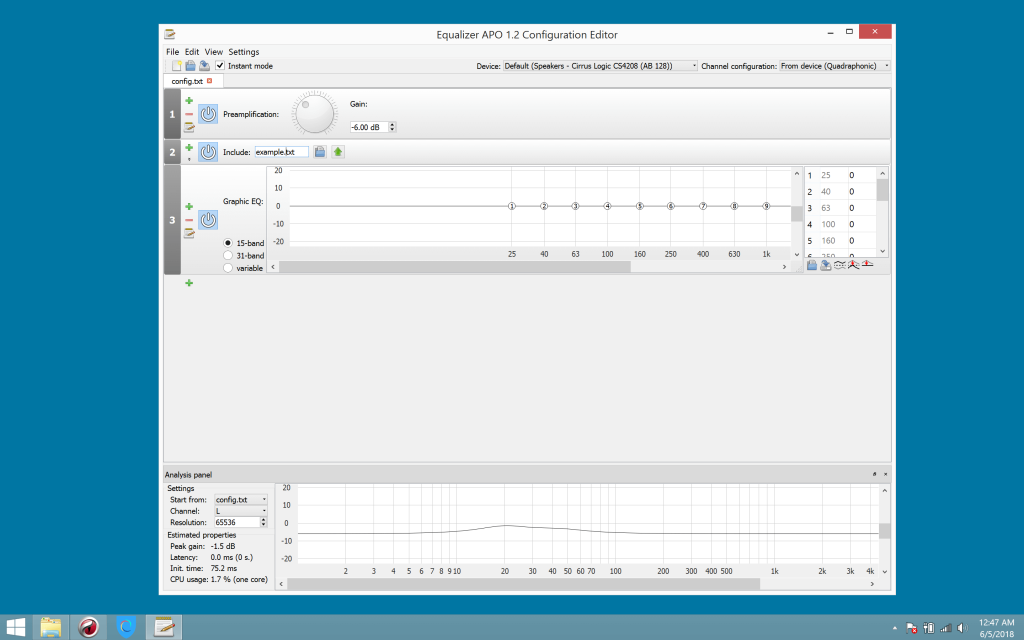
When you launch the program, you’ll see the main Equalizer APO interface. At first, it might look a little overwhelming because of the different tabs and options, but don’t worry. Everything is clearly labeled and easy to understand once you explore it. The layout is designed to let you make changes step by step, so even beginners can start adjusting filters, volume, and sound balance without much effort.
Equalizer APO gives you full control over your system audio. With a few clicks, you can manage devices, create new configurations, or tweak your sound filters to get the perfect tone for your setup.
How to Amplify Sound in Equalizer APO
If your speakers or microphone sound too quiet, Equalizer APO can help you boost the volume easily. You do not need to change complex settings or install extra plugins. The built-in amplifier, called the Preamplification filter, lets you control the sound output for any device connected to your system.
Here is how you can amplify your sound using Equalizer APO:
- Open the Configuration Editor
After installation, open Equalizer APO from your Start Menu or desktop. The Configuration Editor is where all your audio adjustments happen. - Start with a clean setup
On the main screen, you might see a few default configuration tabs. Remove them to begin with a fresh setup. This helps you avoid confusion later. - Create a new configuration
Click the small green plus icon on the left. From the menu, select Control and then Include. This creates a new blank configuration tab where you can build your sound profile. - Create and link a configuration file
When prompted, click the folder icon and create a new text file. You can name it anything you like, such as “My Amplifier Setup.” Once it’s created, select it to link it with your new configuration tab. - Add your playback or recording device
Next, click the green plus icon again. From the dropdown list, choose Control > Devices. You’ll see a window with a list of audio devices. Uncheck the “Select All” box and choose only the device you want to amplify, such as your speakers or headphones. Click OK when done. - Add the amplification filter
Stay on the same screen, then click the plus icon again. Go to Basic Filters and select Preamplification. This is the main control that lets you boost your sound level. - Adjust your volume boost
Use the slider to increase or decrease the gain. A small boost of 3 to 6 decibels is usually enough to make your sound noticeably louder without distortion. If you push it too high, the audio might crackle, so adjust it carefully. - Save your settings and test the sound
Click File and then Save. After that, play some music or a video to check if the amplification works. If it does not, reopen the Configuration Editor and make sure the correct device is selected. Restarting the PC once can also help apply changes. - Activate the filter
Back on the main screen, click the small power button icon to enable the filter. You should now hear a clear increase in volume from your selected device.
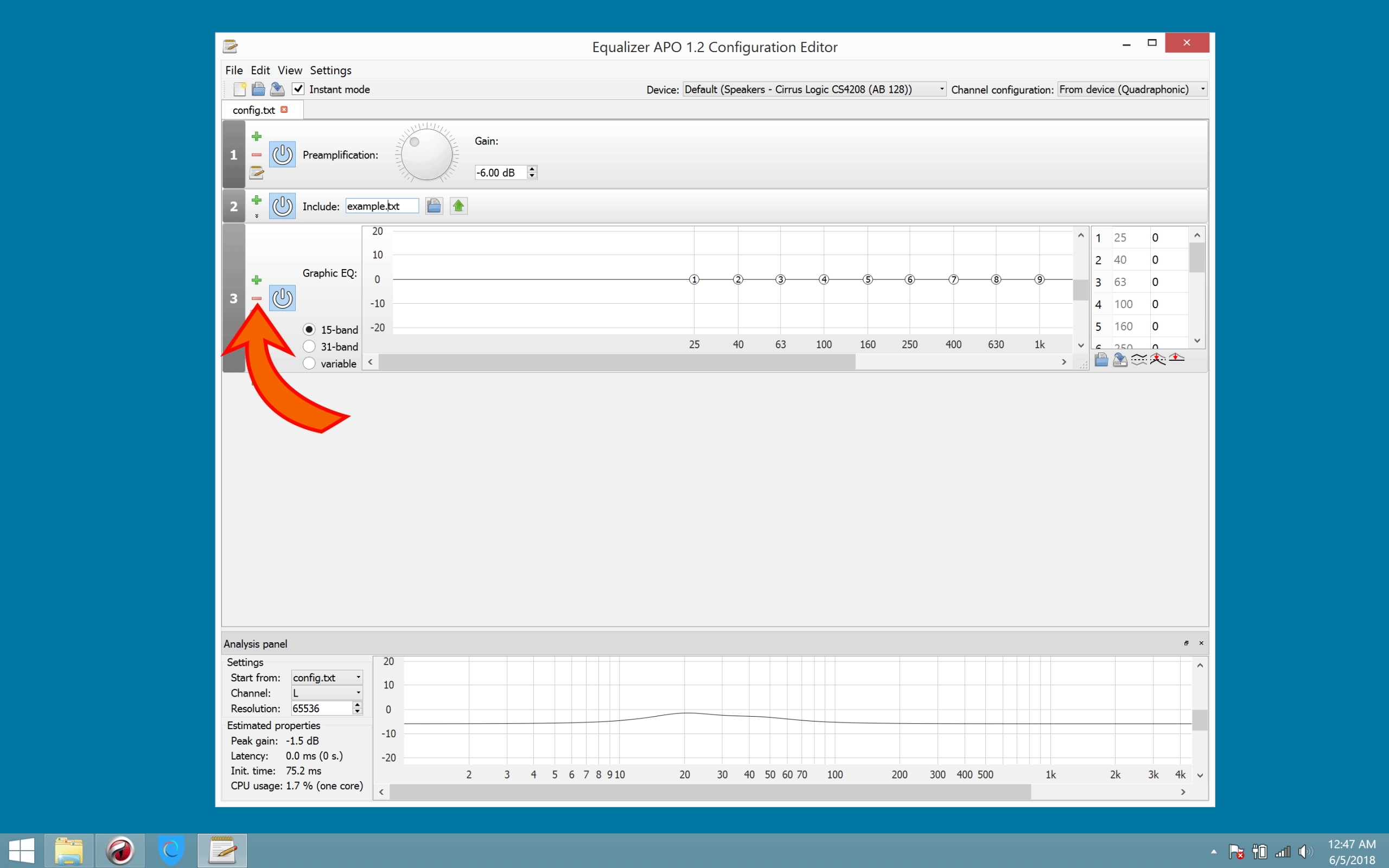
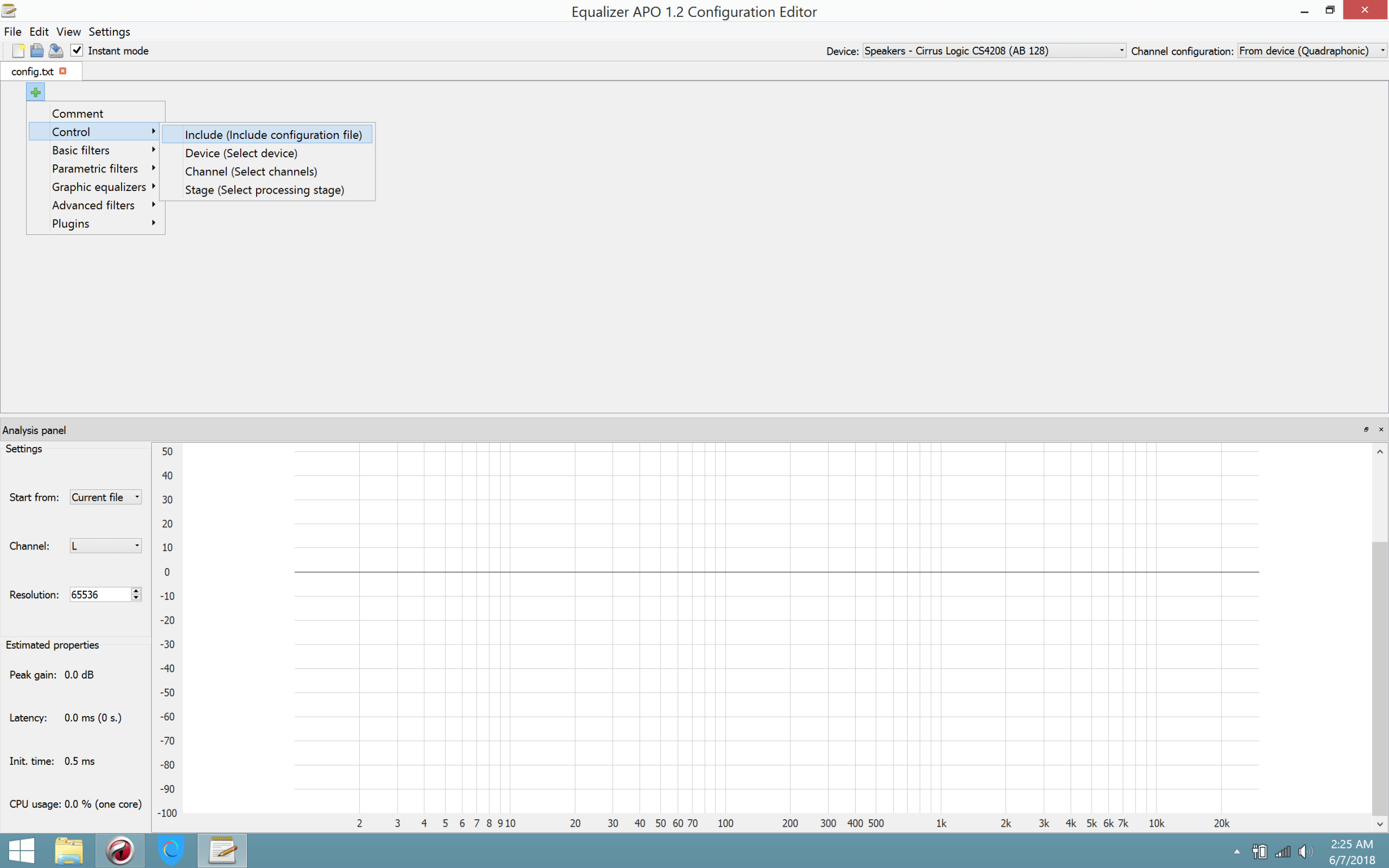

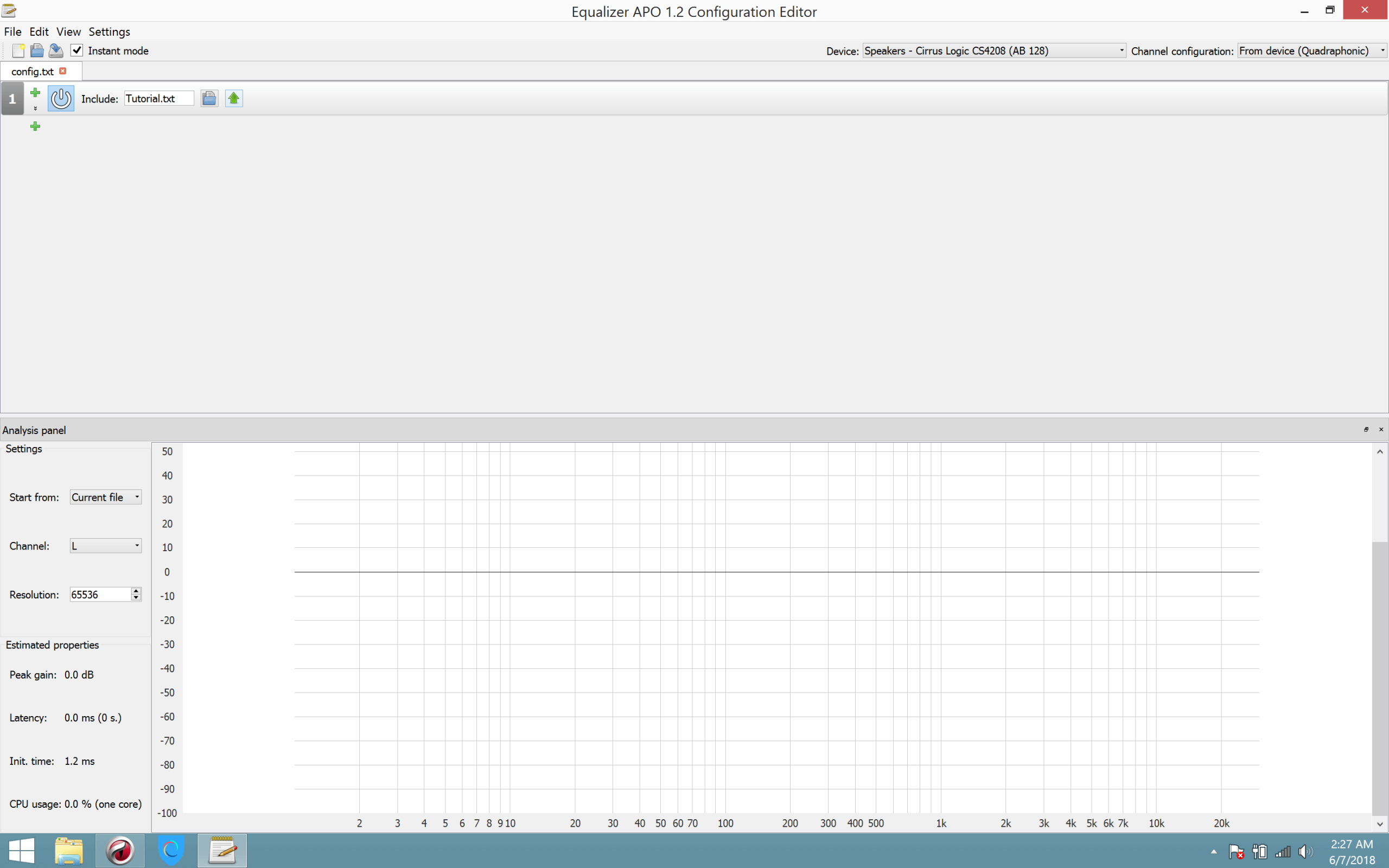

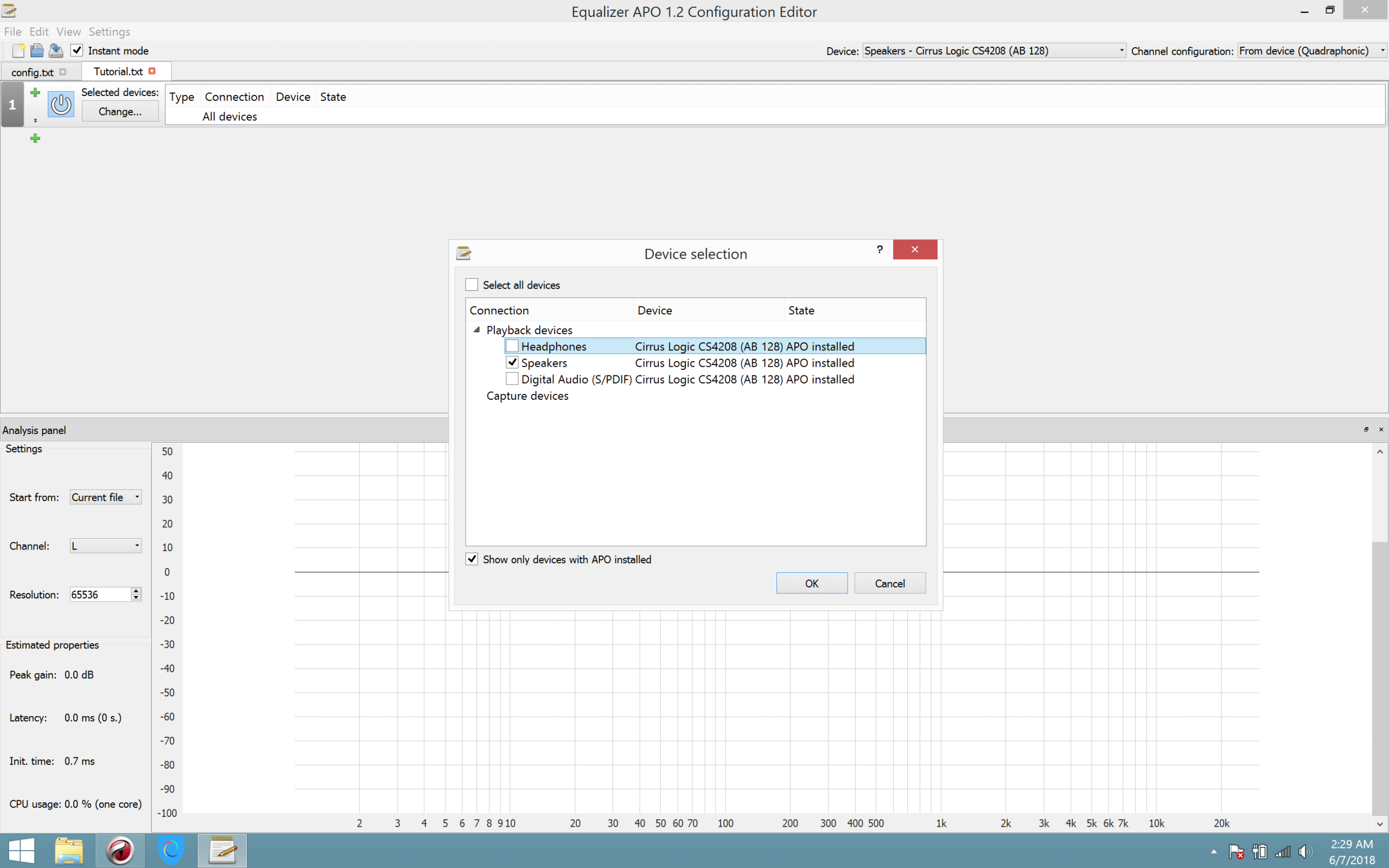

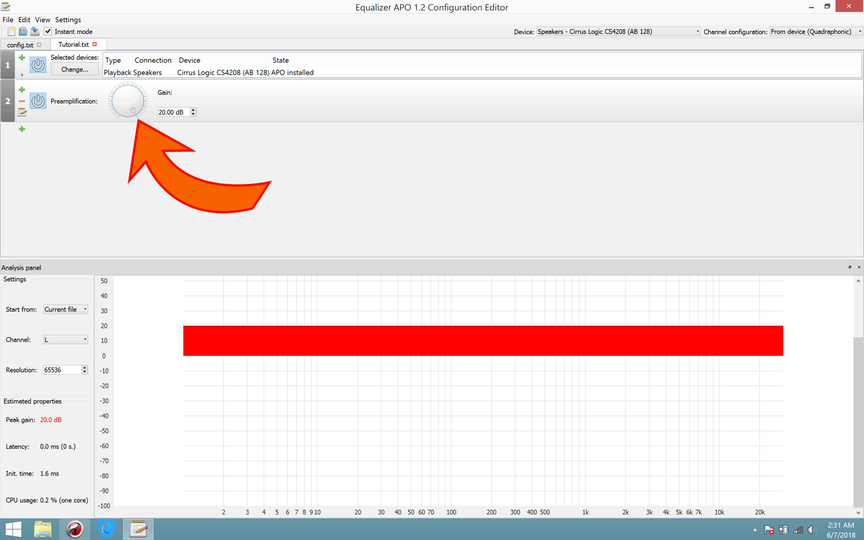

Equalizer APO lets you customize your audio setup as much as you want. You can create separate configurations for different devices, like one for headphones and another for speakers. Once you understand how the Preamplification filter works, you can experiment with more advanced options such as equalizer bands and room corrections to perfect your sound.
If your adjustments do not take effect, double-check the configuration path or delete any conflicting filters. Start again with a clean setup and apply changes step by step. With a bit of patience, Equalizer APO can transform even basic PC audio into rich, dynamic sound.
FAQs
1. Does Equalizer APO work with Windows 11?
Yes, it works with both Windows 10 and Windows 11.
2. Can it slow down my PC?
No, Equalizer APO is very lightweight and barely uses system resources.
3. Does it work with Bluetooth headphones?
Yes, but some Bluetooth drivers may need to be refreshed after installation.
4. How do I make presets?
You can create them directly in the Configuration Editor or use Peace GUI for easier management.
5. Is it safe to use?
Yes. It’s open source and widely trusted by the audio community.
6. Can I use it for my microphone?
Absolutely. You can apply filters to your mic input for cleaner, richer voice quality.
7. What if I uninstall it?
You can remove it at any time through the Control Panel. Your system audio will return to default instantly.
Final Thoughts
Equalizer APO doesn’t have a fancy look, but it works really well. It gives you the kind of control that most paid equalizers promise but don’t always deliver. It’s reliable, efficient, and totally free.
Whether you’re editing podcasts, gaming late at night, or just listening to your favorite songs, Equalizer APO helps you get the sound you want. Once you try it, you’ll see how much better your speakers or headphones can sound.
Go ahead and download it from the official website. It only takes a few minutes to set up. After that, you’ll hear your computer in a whole new way.